Ask a People Ops lead how they use AI and you usually hear the same three things. A job description, a policy rewrite, and one awkward email they did not want to write from scratch.
That is useful, but it barely touches the work that eats an HR week. Leave questions, missing check-outs, payroll checks, interview loops, 1:1 prep, and review season all run on data that sits inside your HR system, not in a chat window.
This guide maps 12 practical uses of AI for HR to the workflows where they save real time. Each one names what AI can handle and the decision a person keeps, followed by a copy-paste prompt library and a look at how MCP lets assistants work with your own HR data under your permissions.
TL;DR
- AI for HR works best on preparation, drafting, summarizing, and spotting exceptions. It should not make hiring, pay, rating, or disciplinary decisions.
- The 12 use cases below cover leave, attendance, payroll checks, recruiting, 1:1 prep, and review drafts.
- Generic chat tools only know what you paste in, so HR teams end up copying sensitive data into them. MCP changes that by letting an assistant read your HR system within your existing access.
- Pulsewise MCP connects Claude, ChatGPT, Codex, Claude Code, and Cursor to Pulsewise. It offers read-only or read-and-act access, and it asks for confirmation before approving leave or attendance requests.
- Use the prompt library to start today, with or without a connected HR system.
Where AI fits in HR work, and where it does not
AI use at work is common but still shallow. According to Gallup’s AI indicator, as of May 2026, 52% of US employees use AI a few times a year or more, but only 15% use it daily in their role.
HR teams sit in the same gap. Most experiment with drafting, while the repetitive, data-heavy work stays manual.
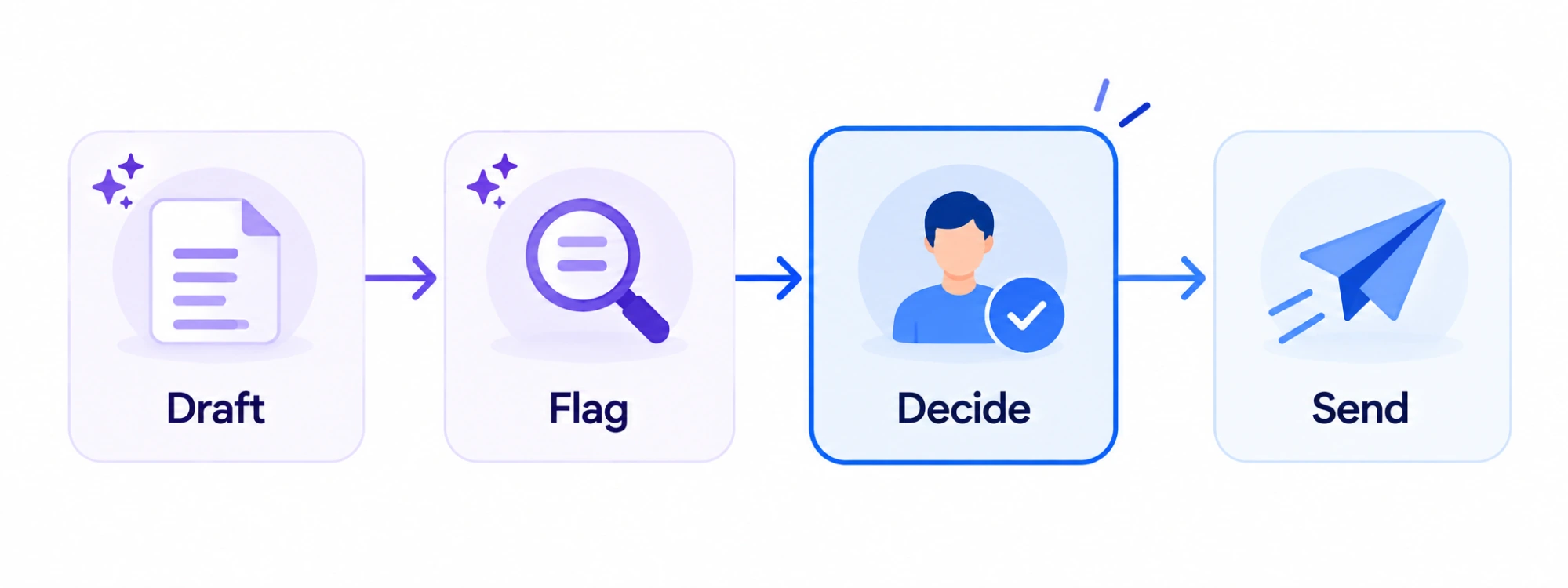
A simple rule keeps AI useful and safe in HR. Let it prepare, draft, summarize, and flag, and keep the decision with a named person.
| Workflow | AI handles | A person owns |
|---|---|---|
| Leave | Balance answers, coverage checks, policy explanations | Approving or rejecting requests |
| Attendance | Flagging missing check-outs and exceptions | Approving corrections |
| Payroll checks | Comparing inputs, listing anomalies | Signing off the payroll run |
| Recruiting | Job descriptions, interview kits, offer drafts | Shortlists, hiring decisions, offer terms |
| 1:1s | Prep briefs, agenda items, follow-up lists | The conversation and what to act on |
| Reviews | Evidence summaries, self-review drafts | Ratings and performance decisions |
The line matters legally as well as ethically. The EU AI Act lists AI used for recruitment, promotion, termination, task allocation, and performance monitoring as high-risk in Annex III, which is directly relevant for EMEA teams.
Leave and attendance
Leave and attendance generate the most repeat questions in HR. They are also the easiest place to start, because the answers already exist as data.
1. Answer leave balance and policy questions
“How many days do I have left?” and “Does Friday count as half a day?” are questions an assistant can answer in seconds. With access to the leave record, it can give the actual balance instead of a general policy summary.
Human in the loop: policy owners keep the policy current. AI repeats the rules; it does not set them.
2. Check coverage before approving time off
Before approving a request, a manager needs to know who else is off that week. An assistant can list overlapping leave for the team and flag a gap, so the approval is an informed one.
Human in the loop: the approver decides. In Pulsewise leave management, approvals stay with approvers, and an assistant connected through MCP must confirm who, what, and when before acting.
3. Triage attendance exceptions
Missing check-outs and correction requests pile up before every pay period. AI can group them by type, such as forgotten check-out or remote day, and surface the ones that need a decision first.
Human in the loop: a manager approves each correction. In Pulsewise attendance, every correction request carries a reason and a visible decision.
Payroll checks
Payroll is where AI should help most carefully. It is excellent at comparison and terrible as a final authority.
4. Run a pre-payroll reconciliation check
Before a run, an assistant can compare approved leave, attendance, and payroll inputs, and list mismatches. Typical flags are a day marked absent that was approved leave, or overtime with no matching attendance record.
Human in the loop: the payroll owner reviews every flag and signs off the run. Keep payroll data inside approved tools; do not paste salary files into a consumer chat app.
5. Draft answers to payslip questions
“Why is my pay lower this month?” usually has a plain answer, such as unpaid leave or a mid-month start. AI can draft a clear, kind explanation from the facts you give it.
Human in the loop: someone checks the numbers before the reply goes out. Pulsewise payroll calculates payment days from leave or attendance data, so the source of each figure is easy to confirm.
Recruiting
Recruiting is the most common place HR teams already use AI. It is also where bias and compliance risk are highest, so the human checkpoints matter most here.
6. Write and de-bias job descriptions
AI turns a hiring manager’s rough notes into a structured job description in minutes. Ask it to flag jargon, unnecessary requirements, and gendered or exclusionary wording.
Human in the loop: the hiring manager confirms the role’s real must-haves. AI cannot know which requirements are genuine.
7. Build structured interview kits
Structured interviews reduce bias, and AI makes them fast to build. It can draft competency-based questions, a scoring rubric, and what a strong answer looks like for each.
Human in the loop: interviewers score candidates. On the Pulsewise recruitment page, the position is direct: the hiring team reviews candidates, runs interviews, and makes the hiring decision.
8. Draft offer letters from a template
Once a decision is made, AI can fill an offer letter template with the agreed role, start date, and terms. It can also draft the personal note that goes with it.
Human in the loop: HR and the hiring manager approve final terms. Never let AI generate compensation figures on its own.
1:1 prep and follow-through
Managers walk into many 1:1s cold. AI can close that gap without writing the conversation for them.
9. Prepare a 1:1 brief
A good brief pulls together goal progress, recent feedback, recognition, open action items, and upcoming time off. With an HR system connected, an assistant can build it from real records in under a minute.
Human in the loop: the manager and teammate choose what to discuss. Pulsewise 1:1 intelligence supports preparation but does not decide what a manager should say.
10. Turn 1:1 notes into agenda items and follow-ups
After the meeting, AI can turn rough notes into clear action items with owners and dates. It can also add a topic to the next agenda, so nothing raised gets lost.
Human in the loop: both people confirm the actions. For a ready-made structure, try the free 1:1 agenda builder, and our guide on how to run a 1-on-1 meeting covers the conversation itself.
Performance review drafts
Review season is where AI saves the most hours and carries the most risk. Used well, it ends recency bias; used badly, it writes generic reviews nobody trusts.
11. Summarize evidence and draft a self-review
AI can gather a year of goals, feedback, and recognition into a short evidence summary. From there it can draft a self-review that cites specific work, not vague adjectives.
Human in the loop: the employee edits and submits it. Through Pulsewise MCP, an assistant can save a self-review draft, but submitting reviews and giving ratings stay in the app, and in Pulsewise reviews managers remain responsible for performance decisions.
People admin
12. Find people and handle routine directory tasks
Small HR teams spend real time on lookups and invites. An assistant can find people by department, list new joiners, or invite someone to the workspace on request.
Human in the loop: access follows the person asking. An assistant connected to Pulsewise acts as you and gets no access beyond your own permissions.
Engagement questions belong here too, but lightly. Admins can ask an assistant for company or team pulse scores, which stay aggregate, while anonymous individual responses are never exposed.
Copy-paste prompt library for HR
These ChatGPT prompts for HR work in Claude, ChatGPT, or any assistant. Replace the bracketed parts, and remove names or personal data unless your organization has approved the tool for HR data.
Leave and attendance
Prompt 1: Answer a leave policy question
You are an HR operations assistant. Answer the employee question below using only the leave policy provided. Reply in under 100 words, in a warm and plain tone. If the policy does not cover the question, say so and suggest the employee contact the People team.
Leave policy:
- Full-time employees get 20 days of paid annual leave per calendar year.
- Up to 5 unused days can be carried into the next year and must be used by 31 March.
- Half days are allowed and count as 0.5 days.
- Requests of 3 or more days need 2 weeks’ notice.
Employee question:
“I have 7 days left this year. Will I lose the extra days if I don’t use them by December, and can I take Friday afternoon off?”
Swap in: your own leave policy points and the exact question the employee asked.
Prompt 2: Triage attendance exceptions before payroll
You are helping a manager review attendance exceptions before payroll closes. Group the items below by type (missing check-out, remote day, on duty elsewhere, other). Then list which items need a manager decision first and explain why in one line each.
Exceptions for 1 to 15 October:
- EMP-014, 3 Oct: checked in 9:05, no check-out recorded
- EMP-022, 6 Oct: correction requested, reason “worked from home”
- EMP-014, 9 Oct: checked in 9:10, no check-out recorded
- EMP-031, 10 Oct: correction requested, reason “client site visit”
- EMP-008, 13 Oct: no check-in, approved leave not found
- EMP-022, 14 Oct: correction requested, reason “worked from home”
Swap in: your exception list, using employee IDs instead of names.
Payroll checks
Prompt 3: Compare attendance and payroll inputs
Compare the two tables below for the October pay period. List every mismatch in a table with these columns: employee ID, dates affected, what attendance says, what payroll says, and the likely cause. Do not change or recalculate any figures. If everything matches for an employee, leave them out.
Table A: Attendance and approved leave
EMP-008 | 20 working days | 2 days approved paid leave (8 to 9 Oct)
EMP-014 | 22 working days | 0 leave
EMP-022 | 21 working days | 1 day unpaid leave (17 Oct)
Table B: Payroll inputs
EMP-008 | 18 payable days | 0 leave
EMP-014 | 22 payable days | 0 leave
EMP-022 | 22 payable days | 0 leave
Swap in: your own attendance export and payroll input file, again by employee ID.
Prompt 4: Explain a lower payslip
Draft a short, kind reply to an employee who asked why their October pay is lower than September. The reason is that they took 2 days of unpaid leave on 8 and 9 October, which was approved by their manager. Explain this simply, without jargon, in under 80 words. End by offering a 15-minute call if they have more questions.
Swap in: the actual reason and dates from the payroll record.
Recruiting
Prompt 5: Turn hiring notes into a job description
Turn the hiring manager notes below into a job description with: a two-sentence role summary, 5 to 7 responsibilities, must-have requirements, nice-to-have requirements, and what success looks like after 6 months. After the job description, list any wording that could discourage qualified people from applying, and suggest a better phrase for each.
Hiring manager notes:
“Need a Customer Success Manager for our EMEA accounts, hybrid, 3 days in our Amsterdam office. Will own about 40 mid-market customers. Must know SaaS onboarding and renewals. Dutch or German a big plus. Looking for a rockstar who can hit the ground running and handle pressure. 5+ years’ experience.”
Swap in: the notes your hiring manager actually sent you.
Prompt 6: Build a structured interview kit
Create a structured interview kit for a Customer Success Manager role. Focus on three competencies: customer communication, renewal and churn management, and cross-team collaboration. For each competency, give two behavioral interview questions, a 1 to 4 scoring rubric that describes each score, and a short example of a strong answer.
Swap in: the role title and the three competencies that matter most for it.
1:1 prep
Prompt 7: Prepare a 1:1 brief
Prepare a 1:1 brief for my meeting with Priya, a product designer on my team. Use the notes below. Give me: 3 wins worth recognizing, 2 topics to explore, any blockers, and 2 open questions to ask her. Keep it under 200 words.
Goal updates: “Redesign onboarding flow” is 70% done and on track. “Design system audit” has not started; due 30 November.
Recent feedback: The engineering lead said her handoff files for the checkout project were the clearest the team has had.
Recognition: Received kudos from support for fixing the confusing billing screen.
Last 1:1 notes: Said she wants more time on research. Mentioned feeling stretched across two projects.
Upcoming: On leave 24 to 28 October.
Swap in: your team member’s real goal updates, feedback, and last 1:1 notes.
Prompt 8: Turn rough notes into action items
Turn these rough 1:1 notes into a list of action items. Give each one an owner (me or Priya) and a due date. Then suggest one topic to carry into our next 1:1 agenda.
Notes: “Priya to share onboarding prototype with sales by next Friday. I’ll check with Sam if the design audit can move to January. Priya wants to join 2 customer research calls this month; I’ll ask the research team. Talked about promotion timeline; revisit next month.”
Review drafts
Prompt 9: Draft a self-review from evidence
Help me draft a self-review for my annual performance review. Using the evidence below, write three short paragraphs: my key contributions with specific examples, how I worked with others, and what I want to grow next year. Use plain language, no superlatives, and keep every claim tied to the evidence. Keep it under 250 words.
Evidence:
- Goal: Cut new-hire onboarding time from 10 days to 6. Result: reached 7 days by September.
- Goal: Launch quarterly pulse survey. Result: launched in March, 82% participation in Q3.
- Feedback from my manager: “Strong at turning messy processes into simple checklists.”
- Feedback from a peer: “Could share progress earlier instead of at the end.”
- Recognition: Kudos from Finance for fixing the leave-to-payroll handoff.
Swap in: your own goals, results, feedback, and recognition from the review period.
Prompt 10: Check a review draft for vague or biased wording
Read the draft performance review below. Flag any vague statements, claims without examples, and wording that could reflect bias. For each flag, explain the problem in one line and suggest a more specific rewrite. Do not suggest a rating.
Draft review:
“Alex is a great team player and always has a positive attitude. She can be a bit emotional in meetings but generally gets things done. She needs to be more of a leader next year. Overall a solid performer.”
Swap in: the review draft you want checked.
With Pulsewise connected through MCP
Once an assistant is connected, you can skip the pasting and ask in your own words. These examples come straight from what Pulsewise MCP supports today:
- “Who’s off tomorrow?”
- “What’s my leave balance?”
- “Prepare me for my 1:1 with Ravi.”
- “Add ‘promotion timeline’ to our 1:1 agenda.”
- “What review work do I owe?”
- “Find people in the Design department.”
MCP for HR: asking your assistant about your own HR data
Every prompt above has the same weakness. The assistant only knows what you paste in, which means copying sensitive HR data into a chat window by hand.
The Model Context Protocol solves that. MCP is an open standard for connecting AI applications to external systems, so an assistant can read from and act in a tool you already use, under rules that tool sets.
What Pulsewise MCP does
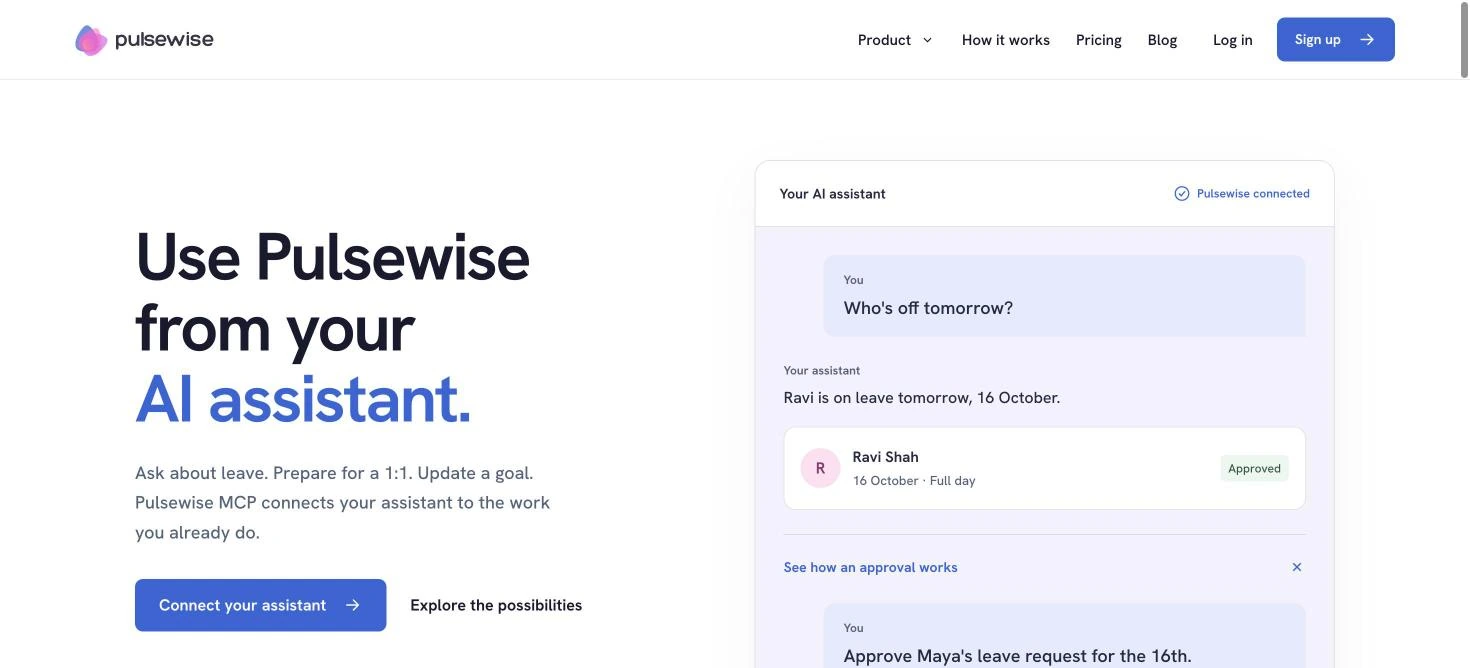
Pulsewise MCP connects your AI assistant to the Pulsewise workspace you already use. It works with Claude, ChatGPT, Codex, Claude Code, Cursor, and other compatible MCP clients.
Employees can check leave, book time off, or ask about their goals. Managers can prepare for 1:1s, add agenda items, and approve leave, and admins can find people and see aggregate engagement.
How permissions work
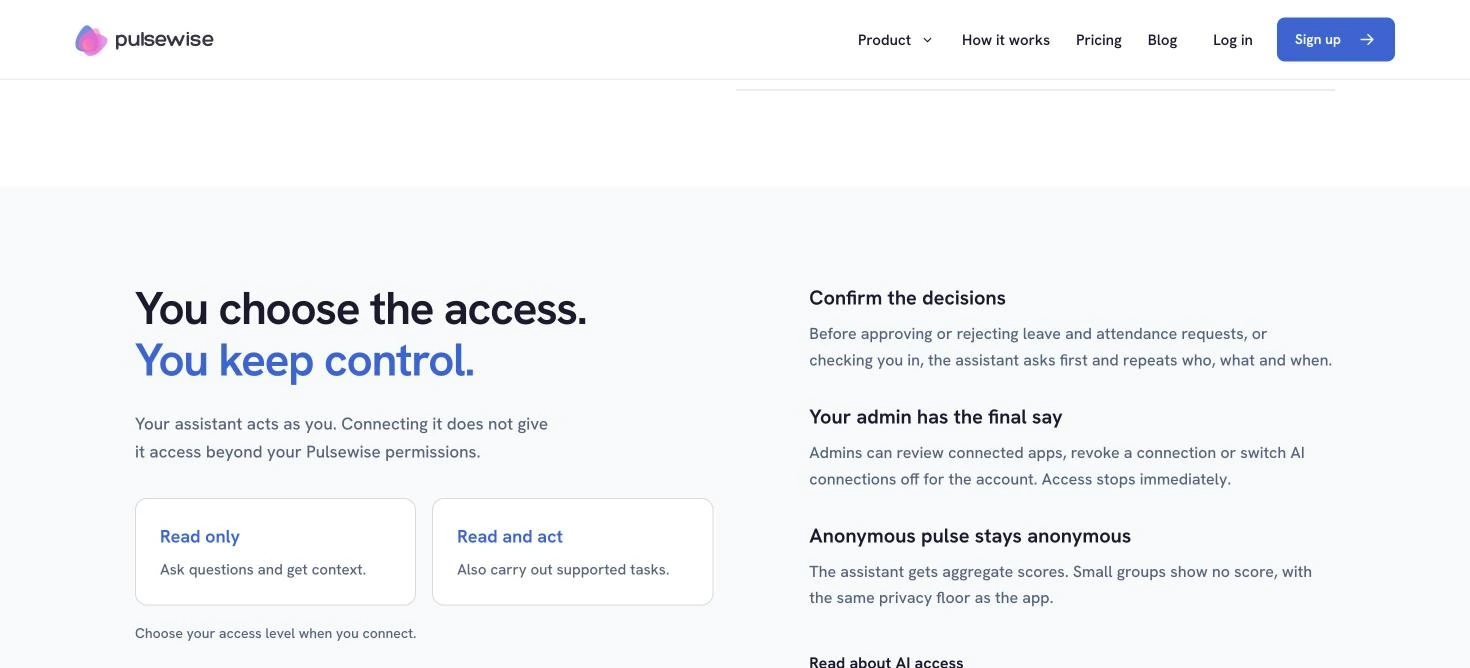
Your assistant acts as you, so it never gets more access than your Pulsewise permissions. When you connect, you choose read only, to ask questions and get context, or read and act, to also carry out supported tasks.
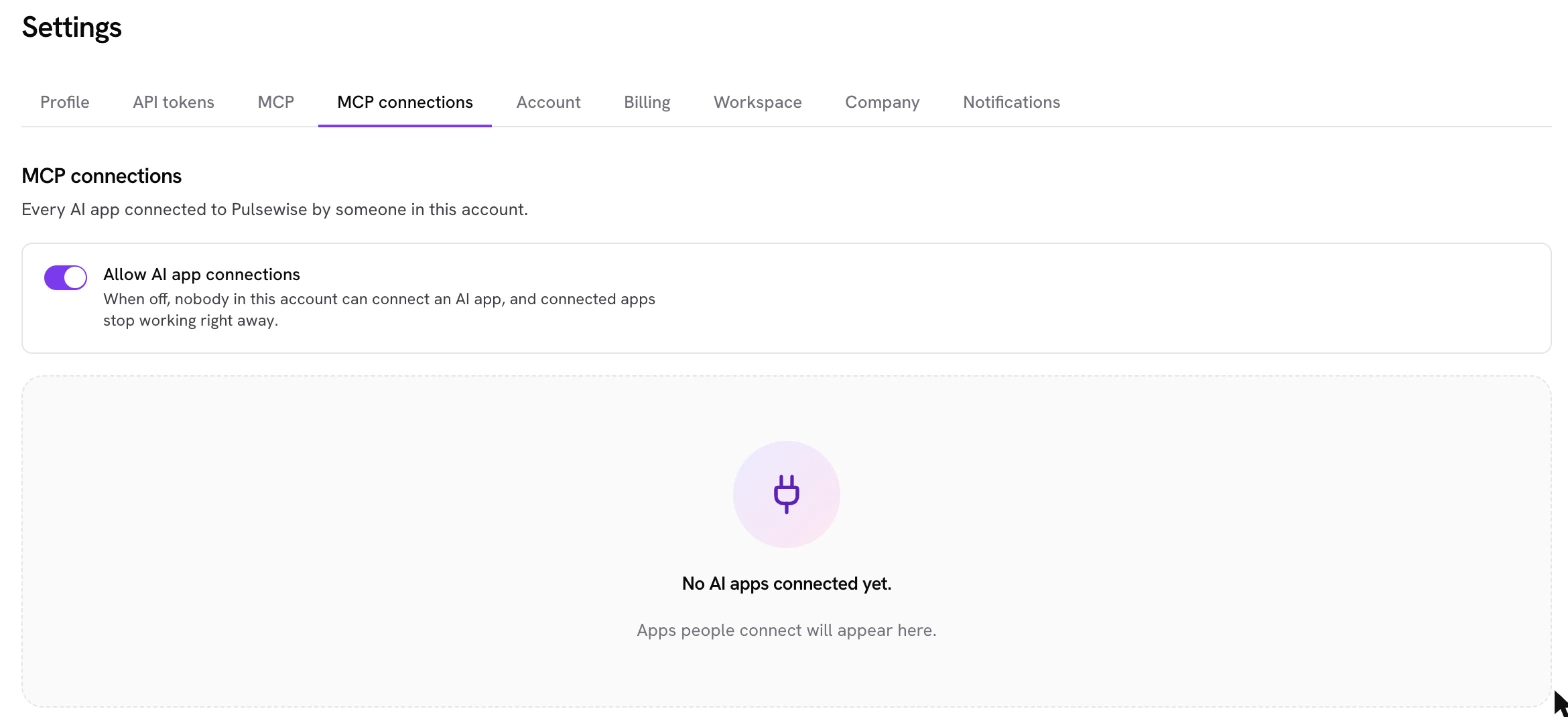
Before approving or rejecting leave and attendance requests, or checking you in, the assistant asks first and repeats who, what, and when. Admins can review connected apps, revoke a connection, or switch AI connections off for the whole account, and access stops immediately.
What stays in Pulsewise
Some actions are deliberately kept in the app. People answer pulse surveys and check-ins, submit reviews, and give ratings in Pulsewise itself, and anonymity settings and admin configuration stay there too.
Pulse data stays protected. The assistant only receives aggregate scores, small groups show no score, and anonymous responses are never exposed.
How to connect Claude or ChatGPT
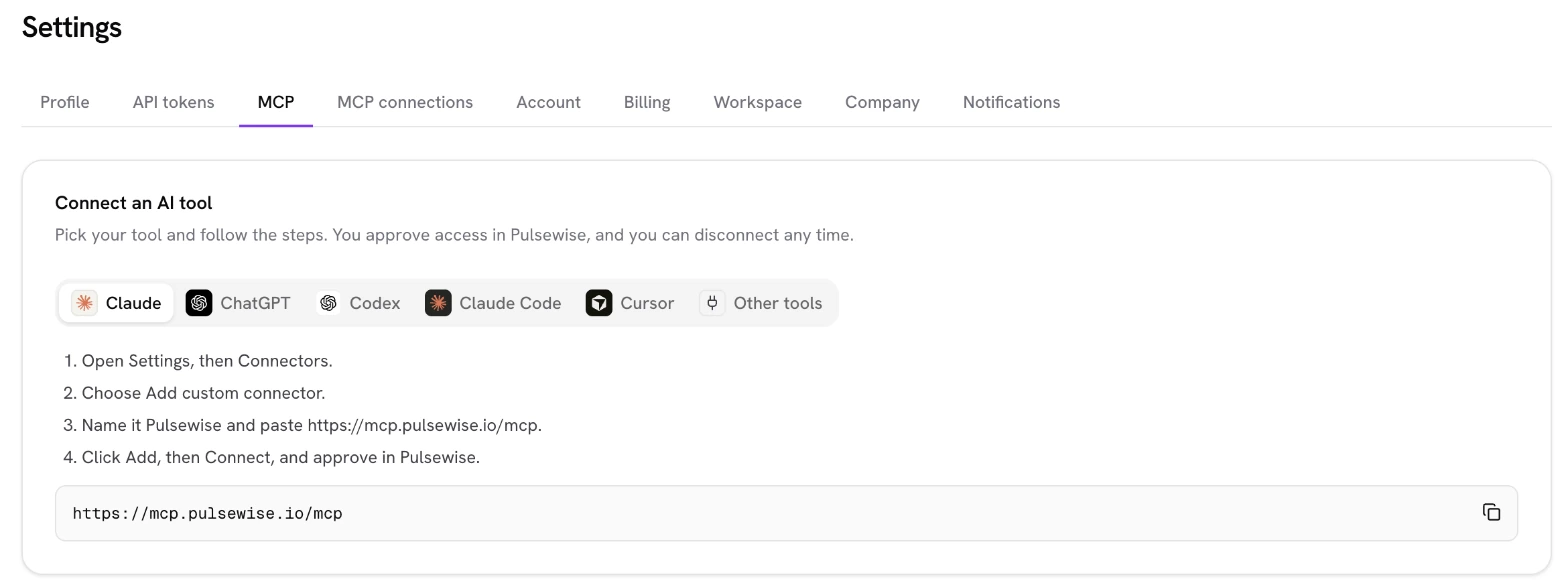
Setup takes a few minutes, and you approve access inside Pulsewise. Once signed in, go to Settings, then MCP, for step-by-step instructions per assistant.
- Claude: open Settings, then Connectors, choose Add custom connector, name it Pulsewise, paste
https://mcp.pulsewise.io/mcp, then click Add and Connect and approve in Pulsewise. - ChatGPT: open Settings, then Apps and Connectors, turn on Developer mode under Advanced settings, choose Create, name it Pulsewise, paste the server URL, pick OAuth, then Create and Connect and approve in Pulsewise.
The MCP connection makes no AI calls inside Pulsewise. The AI runs in your chosen assistant, so that provider’s usage limits, charges, and data policies apply.
Ask your assistant who’s off tomorrow.
Connect Pulsewise MCP to Claude or ChatGPT and choose read-only access to start.
Guardrails before you roll AI out to the HR team
A short policy prevents most AI mistakes in HR. Agree on these five points before anyone connects an assistant to people data.
- Approved tools only. List which assistants may touch HR data, and confirm each provider’s data and training terms.
- Least access first. Start with read-only connections, and add read and act only for workflows that need it.
- Named decision owners. Every workflow in the table above has a person who decides. Write those names down.
- No AI-only people decisions. Hiring, pay, ratings, promotion, and discipline always end with a human, which also keeps you aligned with high-risk rules in the EU AI Act.
- An admin off switch. Make sure one admin can revoke connections or switch AI access off in one place.
Managers carry most of this in practice. Our guide to manager enablement covers how to train them to use new tools without handing over judgment.
Want AI help without the copy-paste?
See how Pulsewise MCP keeps your assistant inside your permissions, or book a short demo and try it on a sample workspace.
Closing
The best uses of AI for HR are not dramatic. They are the leave answer that took ten seconds, the payroll mismatch caught before the run, and the 1:1 that started with real context.
Start with the prompt library for low-risk drafting, then connect your assistant to your HR system once your guardrails are in place. If you run on Pulsewise, connect Pulsewise MCP with read-only access and ask your first question today.
FAQs
How is AI used in HR?
AI in HR is used to answer policy and leave questions, flag attendance exceptions, check payroll inputs, draft job descriptions and offer letters, build interview kits, prepare 1:1s, and summarize evidence for reviews. It works best on drafting, summarizing, and spotting exceptions, while people keep hiring, pay, and performance decisions.
What are the best AI tools for HR?
The best AI tools for HR combine a capable assistant, such as Claude or ChatGPT, with access to your real HR data. General assistants handle drafting well. Connecting them to your HR system through MCP, as Pulsewise does, lets them answer from actual records under your permissions instead of copied data.
Can I use ChatGPT for HR tasks?
Yes. ChatGPT works well for drafting job descriptions, policies, interview questions, and employee replies. Avoid pasting personal or salary data unless your organization has approved it for HR data. For questions about your own HR records, connect it to your HR system through MCP rather than copying data into chats.
What is MCP for HR?
MCP, the Model Context Protocol, is an open standard that connects AI assistants to other software. For HR, it lets an assistant like Claude or ChatGPT read leave, goals, or 1:1 context from your HR system and carry out supported tasks, within the access and permissions the HR system allows.
What HR decisions should AI never make?
AI should never make final decisions on hiring, pay, performance ratings, promotion, termination, or discipline. These decisions affect people’s livelihoods, carry bias risk, and fall under high-risk rules in laws like the EU AI Act. AI can prepare evidence and drafts, but a named person should decide.
Is it safe to connect an AI assistant to HR data?
It can be, with the right controls. Look for permission-based access, a read-only option, confirmation before actions, admin controls to revoke connections, and aggregate-only engagement data. Pulsewise MCP offers all of these, and you should still confirm your AI provider’s data and training terms.