TL;DR
Claude for HR works best as a set-up workspace, not a blank chat: the right plan, a Project with your policies, and a permission-based connection to HR data. For a People team, Team is the practical minimum plan. It does not train on your content by default and adds SSO, shared Projects and connector controls. Build an HR Project with your handbook as knowledge and clear instructions, then connect Pulsewise via MCP so Claude works inside your existing permissions. Use the 10 copy-paste prompts below for policy Q&A, job descriptions, 1:1 prep, review drafts and survey comment themes. Keep the privacy rules: no sensitive personal data in chats, no themes from tiny groups, and a named person approves every people decision.
What Claude does well for HR, and what it should never decide
Claude is strong at the reading and writing work that fills an HR week. It summarises long policies, drafts in your house style, structures messy notes and spots themes across hundreds of comments.
It should never be the one who decides. Hiring, pay, ratings, promotion and discipline stay with a named person, and the EU AI Act lists AI used for those decisions as high-risk under Annex III.
This guide stays specific to Claude. For a tool-agnostic map of where AI fits across leave, payroll and recruiting, read our guide to AI for HR.
Step 1: Pick the right Claude plan for HR
Your plan decides two things that matter in HR: whether your content can be used for training, and whether an admin can control what people connect. The table below reflects the Claude pricing page as checked on 22 October 2026.
| Plan | Price (USD) | What matters for HR | Best fit |
|---|---|---|---|
| Free | $0 | Up to 5 Projects, one custom connector. Training is opt-out, so check your privacy settings. | Trying Claude on public, non-sensitive content |
| Pro | $20/month, or $17/month billed annually | Unlimited Projects, Research, more models. No Project sharing or admin controls. Training is opt-out. | One HR person drafting non-sensitive content |
| Max | From $100/month | Pro features with 5x or 20x the usage. Same personal-account controls as Pro. | Heavy individual use, rarely needed for HR |
| Team | $25/seat monthly, or $20/seat billed annually (2 to 150 people) | No training on your content by default. SSO, shared Projects, central admin and connector controls. | Most People teams at 50 to 300 person companies |
| Enterprise | $20/seat billed annually plus usage, 20-seat minimum | Adds role-based access, SCIM, audit logs, custom data retention and a HIPAA-ready offering. | Regulated industries and larger HR functions |
Our view is simple. If the People team will touch employee information at all, start on Team, because a personal Pro account gives your company no admin control and no audit trail.
Prices and plan features change often. Re-check the pricing page before you buy, and before you republish this guide.
Step 2: Set up an HR Project with your policies
A Project is a workspace inside Claude with its own knowledge and instructions. Claude uses the files you add as context in every chat in that Project, so it answers from your handbook instead of guessing.
Create one Project per job, not one for everything. A “People Ops Assistant” Project for policy and drafting work is a good first one.
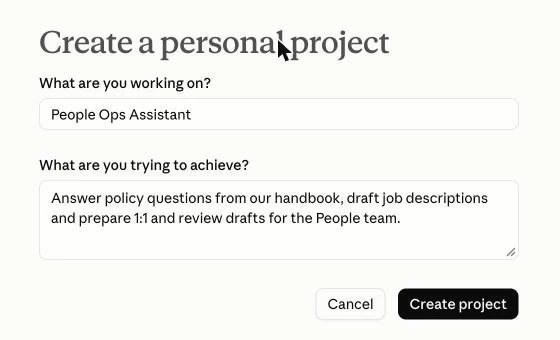
Creating a “People Ops Assistant” Project in Claude.
What to add as Project knowledge
-
Employee handbook and the policies people ask about most: leave, remote work, expenses, code of conduct.
-
Benefits summary in plain language, not the full insurer contract.
-
Job architecture and level guide, so job descriptions match your real levels.
-
Templates you already trust: offer letter, job description, review form, 1:1 agenda.
-
A short tone guide, for example “warm, direct, no legal jargon, UK spelling”.
What to keep out of the Project
-
Employee records, salaries, performance ratings and anything about health, family or immigration.
-
Investigation notes, grievances and disciplinary files.
-
Unreleased decisions such as restructures or layoffs.
On Team and Enterprise you can share the Project with named colleagues. Members with “Can view” access can chat in it, while “Can edit” members can change knowledge and instructions, so keep edit access with the policy owner.
Project instructions you can paste
COPY-PASTE PROMPT: HR Project instructions You are the People Ops assistant for Northwind Labs, a 180-person hybrid software company with offices in London and Lisbon. How to answer: - Answer policy questions only from the files in this Project. Quote the policy name and section, for example “Leave Policy, section 3.2”. - If the files do not cover the question, say so plainly and suggest the employee contact [email protected]. - Write in plain UK English, warm and direct, under 150 words unless asked. What you must not do: - Do not give legal advice. Flag anything that sounds like a legal, medical or safety issue for the People team to handle. - Do not decide on hiring, pay, ratings, promotion or discipline. Prepare drafts and options only, and say a person must decide. - Do not repeat personal details about employees back in your answers. Drafts: - Use the templates in this Project when they exist. - End every draft with “Review before sending” and a list of anything you were unsure about. Swap in: your company name, size, locations, contact address and spelling preference.
Step 3: Connect your HR data with MCP
A Project knows your policies, but it does not know who is off tomorrow or how a goal is tracking. That data lives in your HR system, and copying it into chats is exactly what you want to avoid.
The Model Context Protocol is an open standard that lets Claude connect to other software. When your HR system offers an MCP server, Claude can read from it and carry out supported tasks under the rules that system sets.
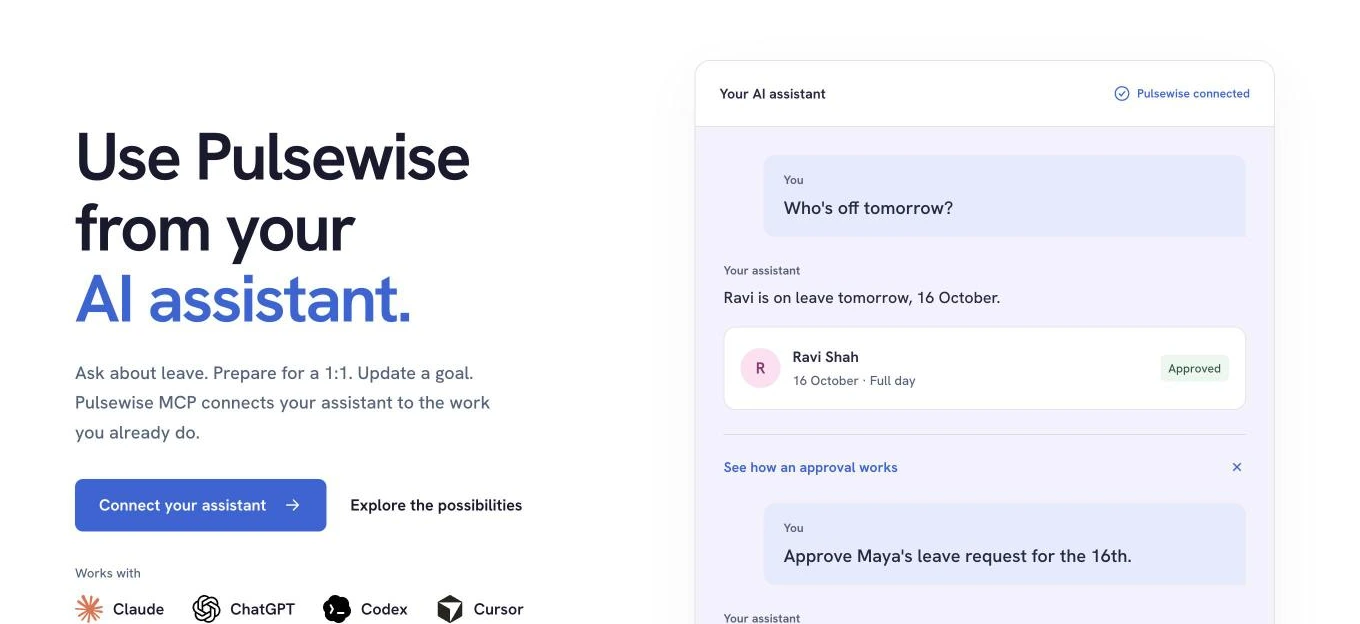
Pulsewise MCP answers “Who’s off tomorrow?” from live leave data.
How to connect Pulsewise to Claude
Pulsewise MCP connects Claude to your Pulsewise workspace. You can copy the server URL and Claude steps from Settings, then MCP, inside Pulsewise.
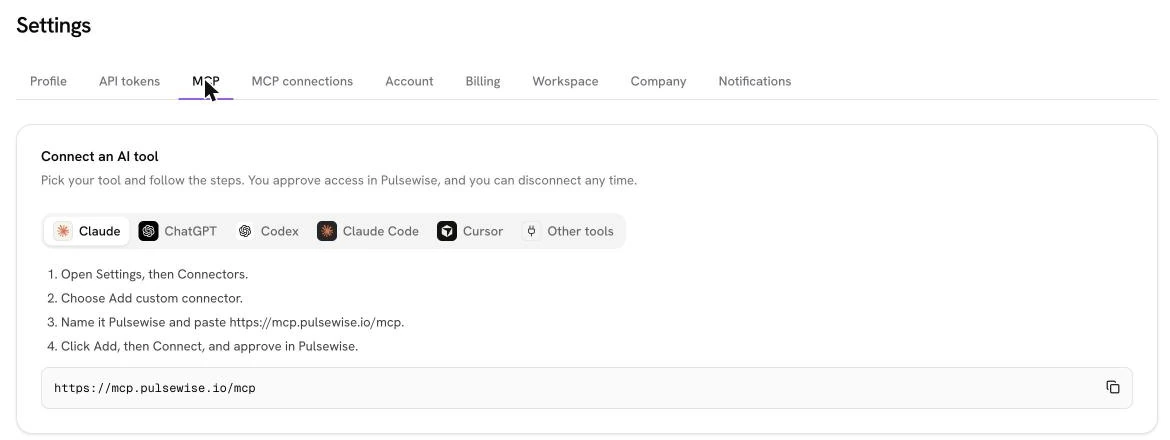
Pulsewise shows the Claude setup steps and server URL under Settings, MCP.
-
In Claude, open Customize, then Connectors.
-
Click Add, then Add custom connector.
-
Name it Pulsewise and paste https://mcp.pulsewise.io/mcp.
-
Click Continue, finish the sign-in settings, then Connect.
-
Sign in to Pulsewise and approve the access you want Claude to have.
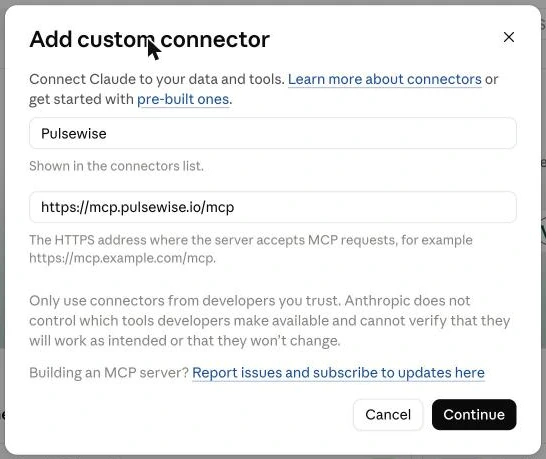
Adding Pulsewise as a custom connector in Claude.
On Team and Enterprise plans, an Owner adds the connector once under Organization settings, then Connectors. Each member then clicks Connect and signs in, so Claude only reaches what that person can access, as the Claude custom connector guide explains.
How role-based permissions work
Through MCP, Claude acts as you. It gets no access beyond your Pulsewise permissions, so an employee sees their own leave while an approver can act on their team’s requests.
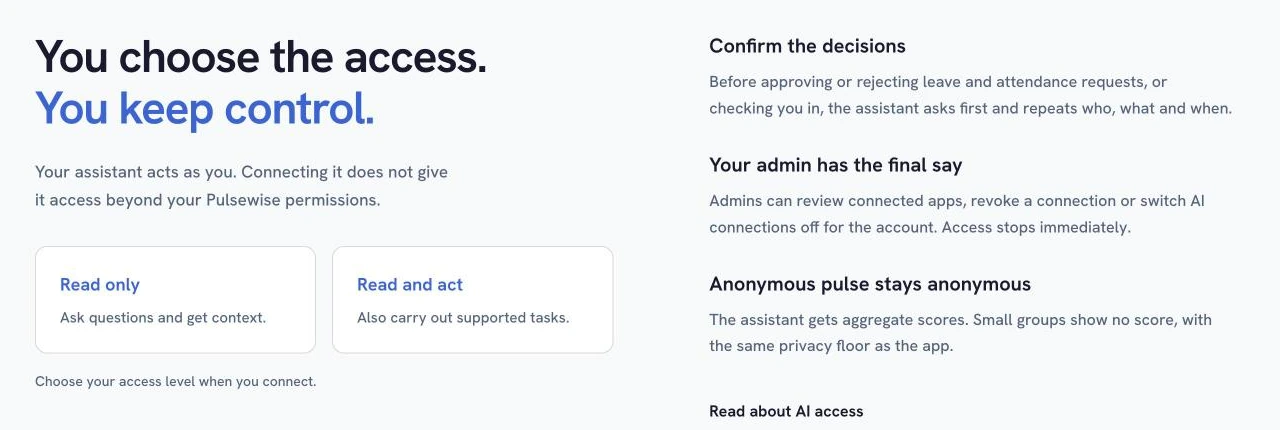
You choose read only or read and act, and admins keep the final say.
-
Choose the access level. Read only lets Claude ask questions and get context. Read and act also lets it carry out supported tasks.
-
Decisions are confirmed. Before approving or rejecting leave and attendance requests, the assistant asks first and repeats who, what and when.
-
Admins hold the switch. Admins can review connected apps, revoke one or turn AI connections off for the account, and access stops immediately.
-
Pulse stays anonymous. Claude receives aggregate pulse scores only, and small groups show no score.
-
Some actions stay in Pulsewise. Answering surveys, submitting reviews and giving ratings happen in the app, and Claude can only save a self-review draft.
Claude adds its own layer on top. Review each tool approval request, keep “Allow always” for read-only tools you trust, and switch off write tools before using Research, which can call connector tools automatically.
CTA Give Claude your HR context without the copy-paste. Connect Pulsewise MCP, start with read-only access and ask who is off this week. Connect Pulsewise MCP
10 Claude workflows for HR, with copy-paste prompts
Each workflow below assumes the HR Project from Step 2. Workflows marked with MCP also use the Pulsewise connection from Step 3, so Claude reads live data instead of pasted text.
Every sample uses invented names and figures. Each prompt is complete, so you can run it as written to see the output before you swap in your own details.
1. Answer policy questions with citations
This is the fastest win. Claude answers from your handbook and names the section, so the People team can check the answer in seconds.
COPY-PASTE PROMPT: Policy Q&A Using only the policies in this Project, answer the employee question below. Quote the policy name and section you used. If two policies conflict, show both and say which one the People team should confirm. Question from Aisha, Senior Analyst, Lisbon office: “I’m moving to a 4-day week from January. How does that change my annual leave, and can I still carry over the 3 days I haven’t used this year?” Swap in: a real question from your HR inbox, with the person’s role and office but no other personal details.
Human check: the policy owner confirms any answer that involves pay, contracts or a policy conflict.
2. Turn a policy change into a plain-language update
COPY-PASTE PROMPT: Policy change summary Our remote work policy is changing on 1 December. Old rule: up to 10 days a year working from another country, with manager approval. New rule: up to 20 days, with manager approval and a 2-week notice to People Ops for tax checks. Write: (1) a 120-word Slack announcement for all staff, (2) a short FAQ with 5 likely questions and answers, and (3) a 2-line note for managers on what they now need to do differently. Swap in: the old and new wording of your own policy change and its start date.
Human check: legal or finance confirms anything with tax or contract impact before it goes out.
3. Draft a job description in your house style
Because the Project holds your level guide and template, Claude can match your real job architecture instead of a generic format.
COPY-PASTE PROMPT: Job description Draft a job description using our job description template and level guide in this Project. Role: People Operations Partner, Level 3 Team: People, reporting to the Head of People Location: London, hybrid, 2 days a week in the office Hiring manager notes: “Owns onboarding and policy questions for about 90 people across Engineering and Product. Needs HRIS experience and calm judgment on employee relations. Will run our engagement survey follow-up. Nice to have: Portuguese.” After the draft, list any requirement that might be unnecessary or could put off qualified applicants, with a suggested fix. Swap in: the role, level, location and your hiring manager’s real notes.
Human check: the hiring manager confirms the must-haves, and HR confirms the level and salary band outside Claude.
4. Build a structured interview scorecard
COPY-PASTE PROMPT: Interview scorecard Create an interview scorecard for the People Operations Partner role above. Cover three competencies: employee relations judgment, process design, and stakeholder communication. For each competency give two behavioural questions, a 1 to 4 rating scale with a one-line description per score, and one red flag to listen for. Format it as a table I can paste into our interview guide. Swap in: your role and the three competencies your hiring panel agreed on.
Human check: interviewers score candidates themselves and the panel makes the hiring decision.
5. Prepare a 1:1 brief (with MCP)
With Pulsewise connected, Claude can pull goals, recent feedback and kudos for one person, which removes most of the prep work before a 1:1.
COPY-PASTE PROMPT: 1:1 brief with Pulsewise Prepare me for my 1:1 with Ravi tomorrow. Use Pulsewise to check his goal progress, any feedback and kudos from the last 30 days, open 1:1 action items and upcoming leave. Give me: 2 things to recognise, 2 topics to explore, any blocker I should ask about, and 3 open questions. Keep it under 200 words, and do not suggest a rating or a performance judgment. Swap in: your report’s name and the time window you care about.
Human check: the manager decides what to raise. Our guide on how to run a 1:1 meeting covers the conversation itself.
6. Turn 1:1 notes into agenda items and follow-ups (with MCP)
COPY-PASTE PROMPT: 1:1 follow-up with Pulsewise Here are my rough notes from today’s 1:1 with Ravi: “Wants to lead the Q1 customer research sprint. Worried about the reporting backlog. Asked about promotion timeline. I’ll talk to Sam about reporting help by Friday.” 1. Turn these into action items with an owner and a due date. 2. Add “promotion timeline” and “Q1 research sprint” to our next 1:1 agenda in Pulsewise. 3. Show me the action items before saving anything. Swap in: your own notes and the topics you want carried into the next meeting.
Human check: both people agree on the actions. The 1:1 conversations page shows how agendas and follow-through work in Pulsewise.
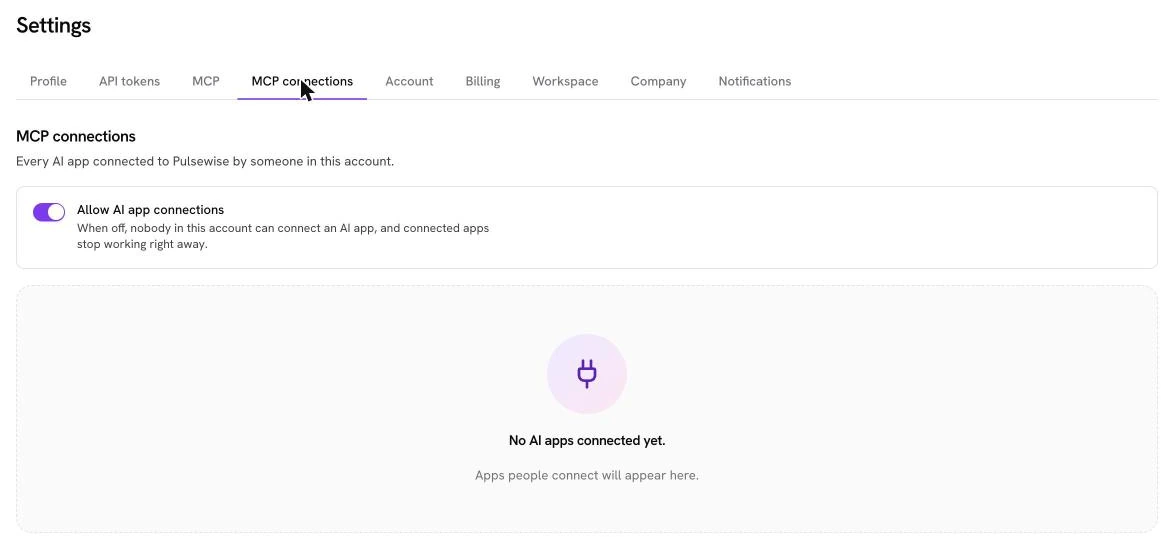
Admins can turn AI app connections off for the whole account in one place.
7. Draft a self-review from evidence (with MCP)
COPY-PASTE PROMPT: Self-review draft with Pulsewise Help me draft my self-review for the H2 review cycle. Use Pulsewise to find my goals and check-ins, feedback I received and kudos from 1 July to 31 December. Write three short paragraphs: main contributions with specific examples, how I worked with others, and one area to grow. Tie every claim to an example, avoid superlatives and keep it under 250 words. Save it as a draft in Pulsewise only after I approve the text. Swap in: your review cycle and its date range.
Human check: you edit and submit the review yourself in Pulsewise reviews, where submitting and rating stay in the app.
8. Check a manager review for vague or biased wording
COPY-PASTE PROMPT: Review language check Check the review draft below. Flag vague claims, claims without an example and wording that may reflect bias, such as comments on personality or tone that would not be made about other people. For each flag, explain the issue in one line and suggest a specific rewrite. Do not suggest or change the rating. Draft: “Maria is very likeable and always brings good energy. She can be a little aggressive when she disagrees in meetings. She needs to show more executive presence before we consider her for promotion.” Swap in: the manager’s draft, with the employee’s name changed if your policy requires it.
Human check: the manager owns the final wording and the rating, and calibration happens with people in the room.
9. Find themes in survey comments
Claude is good at clustering open-text comments, but only if you prepare the export first. Remove names, teams under five people and any comment that could identify its author.
COPY-PASTE PROMPT: Survey comment themes Below are anonymised open-text comments from our October engagement survey, from teams of 5 or more people. Group them into 4 to 6 themes. For each theme give a one-line summary, the number of comments, and one short representative quote. Then suggest one question a manager could ask their team about the top two themes. Do not guess who wrote any comment. 1. “Priorities change every week and nobody explains why.” 2. “My manager is great but our team is stretched too thin.” 3. “Love the people here. The tools are slow and break often.” 4. “I don’t know how promotions are decided.” 5. “Too many meetings, not enough time to do the actual work.” 6. “Would like more clarity on career levels.” 7. “Planning feels top-down. We hear about decisions after they’re made.” 8. “Onboarding was excellent, really felt welcome.” 9. “Workload is heavy around every release.” 10. “Not sure what good performance looks like in my role.” Swap in: your own anonymised export, after removing names and small-team comments.
Human check: People leaders read the raw comments before acting. Our engagement survey questions guide helps you ask better open questions next time.
10. Prepare an engagement readout for a leader (with MCP)
COPY-PASTE PROMPT: Engagement readout with Pulsewise Using Pulsewise, show me the latest aggregate pulse scores for the company and for each department where a score is available. Do not try to work out scores for groups too small to show. Then draft a one-page readout for our CEO: the two strongest and two weakest dimensions, what changed since last month, and three suggested actions with an owner role for each. Label every suggested action as a proposal for the leadership team to decide. Swap in: the time period and audience for your readout.
Human check: leaders choose the actions. Through MCP, Claude only sees aggregate pulse survey scores, and company engagement is available to admins only.
IMAGE PROMPT Placement: inline, directly after workflow 10. Size: 1600 x 700 px. Prompt: Minimal flat diagram on an off-white background with three columns joined by thin arrows. Left column labelled “Claude drafts” with icons for a document, a chat bubble and a list. Middle column labelled “Pulsewise permissions” with a shield icon and a small “Read only / Read and act” switch. Right column labelled “A person decides” with a silhouette holding a check mark, drawn slightly larger and outlined in navy. Soft coral and navy palette, thin line icons, no logos, no other text. Alt text: Claude for HR workflow where Claude drafts, Pulsewise permissions limit access and a person makes the decision.
CTA Try workflows 5, 6 and 10 on your own data. Connect Claude to Pulsewise, choose read-only first and switch to read and act when your team is ready. Set up Pulsewise MCP
Privacy rules for HR data in Claude
Most AI mistakes in HR come from what gets pasted, not what gets generated. Agree on these rules before anyone in the People team uses Claude for real work.
1. Know what never goes into a chat
-
Government ID numbers, bank details and full salary records.
-
Health, disability, pregnancy or family details, and anything from a medical note.
-
Investigation, grievance and disciplinary files.
-
Immigration status, criminal records and background check results.
-
Unreleased decisions about restructures, layoffs or individual exits.
If a task genuinely needs one of these, it belongs in your HR system or an approved enterprise tool with a documented reason, not in a general chat.
2. Check the training setting on personal plans
On Free, Pro and Max, the “Help improve our AI models” setting controls whether your chats can be used for training. Anyone using a personal plan for work drafts should turn it off under Settings, then Privacy.
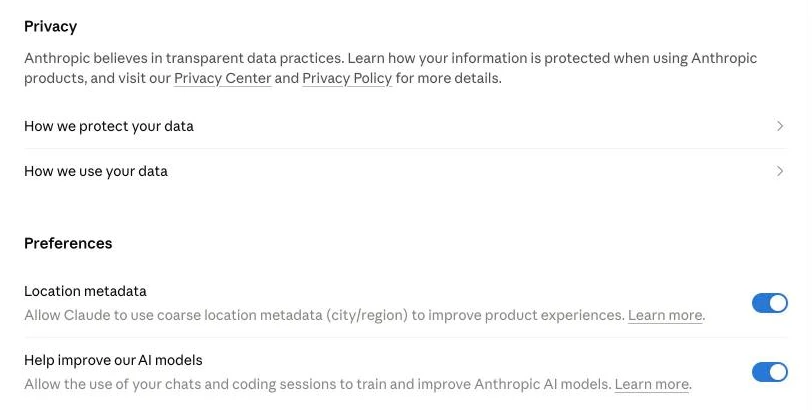
The “Help improve our AI models” setting under Settings, Privacy in Claude.
Team and Enterprise plans do not train on your content by default, which is one more reason to move HR work there.
3. Respect anonymity thresholds
Never ask Claude to analyse responses from groups so small that someone could be identified. A common rule is no results for fewer than five people, and Pulsewise applies minimum group sizes so small groups show no score through MCP.
When you export comments yourself, apply the same rule before pasting. Also strip details such as project names or locations that point to one person.
4. Keep a person on every decision
Write down who decides each workflow: the approver for leave, the hiring panel for offers, the manager for ratings. Claude prepares the evidence and the draft, and that named person signs off.
5. Use least access, and keep an off switch
Start every MCP connection on read only and move to read and act only for workflows that need it. Make sure one admin can revoke connections in one place, as both Claude Team and Pulsewise allow.
Your security and privacy review should also confirm data handling in your agreement with Anthropic. Through MCP, the AI runs in Claude, so Claude’s terms apply to what it processes.
A 30-day rollout plan for the People team
| Week | What to do | Done when |
|---|---|---|
| 1 | Choose the plan, write a one-page AI policy using the five rules above, and set privacy settings. | Every People team member has read and accepted the policy |
| 2 | Build the People Ops Assistant Project with the handbook, templates and instructions. Test it on 20 real past questions. | At least 18 of 20 answers cite the right policy section |
| 3 | Connect Pulsewise MCP on read only for the People team and two pilot managers. Run workflows 5 and 10. | Managers say the 1:1 brief saved them prep time |
| 4 | Review what worked, fix the instructions, then turn on read and act for the workflows that need it. | A short guide and approved prompt list goes to all managers |
Swap in your own pilot size and pass marks. These are starting points, not benchmarks.
Managers are the bigger change than the tool. Our guide to manager enablement covers how to train them to use AI help without handing over their judgment.
Final thoughts
Claude becomes genuinely useful for HR once it stops being a blank chat. A Team plan, a well-built Project and a permission-based connection to your HR system turn it into an assistant your People team can trust with real work.
Start with policy questions inside a Project, add Pulsewise MCP on read-only access, and expand one workflow at a time. Keep the privacy rules and a named decision owner in place, and the time savings follow without the risk.
Ready to connect Claude to your HR data? Pulsewise MCP keeps Claude inside your existing permissions, with confirmations, admin controls and aggregate-only pulse data. Connect Pulsewise MCP
FAQs
Is Claude good for HR work?
Yes, for drafting, summarising and preparation. Claude handles policy questions, job descriptions, 1:1 briefs, review drafts and survey comment themes well, especially inside a Project loaded with your handbook. It should not make hiring, pay, rating or disciplinary decisions. Treat every output as a draft that a named person checks and approves.
Which Claude plan is best for an HR team?
For a People team handling employee data, Team is the practical minimum. It does not train on your content by default and adds SSO, shared Projects and admin controls for connectors. Enterprise adds role-based access, audit logs, SCIM and custom data retention. Pro suits one person drafting non-sensitive content.
Is it safe to put employee data into Claude?
It depends on your plan, settings and policy. Keep names, health details, salaries and ID numbers out of personal accounts entirely. On Team or Enterprise, follow your company AI policy and share only what each task needs. Connecting your HR system through MCP is safer than pasting, because access follows existing permissions.
Does Claude train on HR data I share?
On Team and Enterprise plans, Anthropic does not train models on your content by default. On Free, Pro and Max, training is controlled by the “Help improve our AI models” privacy setting, which you can turn off. Check the setting before sharing any work content, and confirm current terms on the Claude pricing page.
Can Claude connect to my HR system?
Yes, if the system offers a remote MCP server. You add it in Claude as a custom connector, sign in, and approve access in the HR tool. Pulsewise MCP works this way, so Claude can answer leave questions, prepare 1:1s and read aggregate pulse scores within your existing Pulsewise permissions.
What are the best Claude prompts for HR?
The best prompts give Claude a role, the exact source to use, a clear output format and a limit on what it may decide. For example, ask it to answer a policy question using only the handbook and cite the section. The ten prompts in this guide follow that pattern and are ready to copy.